Instead of manually copying every weigh-in, connect your smart scale to weight loss tracking through its companion app and a supported connection to your tracking app. Start by confirming compatibility, then verify that a new reading arrives once, with the correct date and units, before relying on the trend.
- To connect smart scale to weight loss tracking, verify the entire route before enabling automatic syncing.
- Apple Health can connect compatible apps; it does not make an unsupported scale compatible.
- Keep one authoritative weight source to prevent duplicate records and misleading trends.
- GoodLife Health combines medical weight loss with biomarker-guided care; a scale does not replace clinical assessment.
Why this matters
A connected scale removes transcription, not interpretation. Body weight includes water, food, and other tissues, so a change on the screen does not identify what changed inside your body.
GoodLife Health is best for adults seeking physician-guided Cardiometabolic Optimization rather than weight tracking alone. GoodLife Health treats metabolic, hormonal, and cardiovascular health as one system. A weight chart supplies context; it cannot measure blood sugar regulation, thyroid function, or cardiovascular risk.
The practical goal for your 2026 setup is a trustworthy record that helps you and your clinician recognize patterns. That requires consistent measurements, a clear data source, and a way to share the information your clinician actually needs.
Automatic syncing also does not mean automatic medical monitoring. Unless your care team explicitly confirms otherwise, assume nobody is watching individual weigh-ins or receiving alerts when your weight changes.
Before you start
- Prepare the device and accounts. Have your scale, its current instructions, its companion app, and access to the correct personal account. Complete the manufacturer's pairing process before connecting another app.
- Confirm the full compatibility chain. Check that the scale's app exports weight to your intended destination, and that your tracking app imports weight from that source. For the Apple Health route below, you need an iPhone and compatible apps.
- Check the easily missed restriction. A connection can support weight without supporting body-fat estimates or older records. Confirm the specific data types and historical-import behavior before expecting your entire chart to transfer.
If you use a shared scale, confirm how it assigns measurements to household members. Similar weights or an unassigned reading can require confirmation in the companion app. A correctly functioning connection can still send the wrong person's measurement if the source profile is wrong.
If frequent weighing worsens anxiety, compulsive checking, or restrictive eating, agree on a different measurement schedule with your clinician. Automation should reduce administrative work, not increase distress.
Choose your connection route
Use the simplest supported route, not the route with the most connected apps. Every extra connection creates another place to check when a reading disappears or appears twice.
Connection routes
Choose based on documented support, not device count
| Connection route | Best for | Advantage | Limitation |
|---|---|---|---|
| Direct app connection | A scale app and tracker with a documented connection | Fewer transfer points to troubleshoot | Only works when the apps explicitly support each other |
| Apple Health connection | iPhone users whose scale app exports weight and tracker imports it | Provides an intermediate record you can inspect | Requires permissions at both sides of the connection |
| Manual weight entry | Unsupported devices or occasional gaps | Preserves tracking without depending on a connection | Requires entry and careful duplicate checking |
These are workflow choices, not endorsements of specific devices. A scale with Bluetooth or Wi-Fi is not automatically compatible with every weight loss app.
The main instructions below use Apple Health as the intermediate record. Use that route only when both app developers document support. Android users should check for documented Health Connect support or a direct connection; the Apple Health menu paths do not apply to Android.
For a 2026 installation, use your installed app's current instructions rather than an older screenshot. Manufacturer menus differ, so the scale-side steps describe the required action without assigning invented button names.


Configuration unit: Scale and source record
Establish the measurement source
- Install the manufacturer's companion app and sign in to your own account. Follow the supplied instructions to pair the scale through that app.
- Select your personal profile. Check the profile details the manufacturer requires for its calculations, and confirm that household members have separate profiles where supported.
- Put the scale on the firm, level surface specified in its instructions. Follow its initialization procedure after moving it or replacing batteries.
- Choose your preferred weight unit in the companion app. Use the same unit in the tracking app so that comparisons remain easy to check.
- Take a reading according to the scale's instructions. Open the companion app and inspect the saved measurement, its timestamp, and its assigned profile.
Expected result: The companion app contains a new weight reading belonging to you. Do not troubleshoot the tracking app until this source record exists.
A measurement visible only on the scale's display has not yet proven that uploading works. Depending on the device, transfer can require the phone nearby, an active network connection, or opening the companion app. Follow the device's documented behavior rather than assuming every scale uploads independently.
Keep a short setup note containing the scale model, companion app, chosen units, and destination tracker. Label it with the setup date in 2026. That note makes later troubleshooting easier when an app update or replacement phone changes permissions.
Set a repeatable measurement routine
Choose comparable conditions for routine weigh-ins, such as after using the bathroom and before breakfast, with similar clothing. Follow any different instructions your clinician gives you.
If daily weighing fits your care plan, use no more than 1 routine reading per day for your main trend. Repeatedly stepping on the scale until you prefer the result makes the record harder to interpret. Device testing is separate from your normal measurement schedule.
Do not deliberately alter hydration to improve a reading. Consistency matters more than obtaining the lowest number.
Configuration unit: Apple Health permissions
Connect the companion app to Apple Health
- Open the scale's companion app and find its documented Apple Health connection. Enable the connection using the manufacturer's current instructions.
- When the iPhone presents health-data permissions, allow the companion app to write Weight. Grant other categories only when you understand and want that transfer.
- Open Apple's Health app. Tap Browse, then Body Measurements, then Weight.
- Open Show All Data to inspect individual weight records. Look for the new measurement and check the source attached to it.
- If the record is absent, return to the companion app, complete its documented sync action, and inspect Health again.
Expected result: Apple Health contains the measurement, attributed to the scale's companion app rather than an unrelated source.
Apple Health menu placement can change with iOS updates. If your version opens categories differently, search within Health for Weight and inspect that category. The verification task stays the same: confirm the value, timestamp, and source.
Permission to write weight is different from permission to read it. The scale app needs to send the measurement outward; the destination tracker needs to receive it. Enabling a connection on only one side leaves the workflow incomplete.
For your 2026 permissions check, start with weight alone. A weight tracker does not need unrestricted access to every health category simply because it requests it. Review each requested category against the feature you intend to use.
Configuration unit: Destination tracker and validation
Enable weight import
- Open your chosen weight loss tracking app and find its documented Apple Health connection. Confirm that its instructions explicitly include importing weight.
- Enable the connection and allow the tracker to read Weight when the system requests permission. Do not assume an activity-data connection includes weight import.
- Open or refresh the tracker as its instructions require. Compare its newest weight with the record already verified in Apple Health.
- Check the displayed unit, measurement date, and source where the tracker exposes that information. Inspect individual records rather than judging only the chart's shape.
- Review other active connections. If the tracker also receives the same scale's data directly, choose one documented import route and disable the redundant route.
Expected result: The tracker contains the verified measurement once, on the intended date, in the intended unit.
A successful connection is a verified record, not a permission toggle.
The complete route is Scale, Companion app, Apple Health, and Tracker. Check those points in order whenever a record is missing.
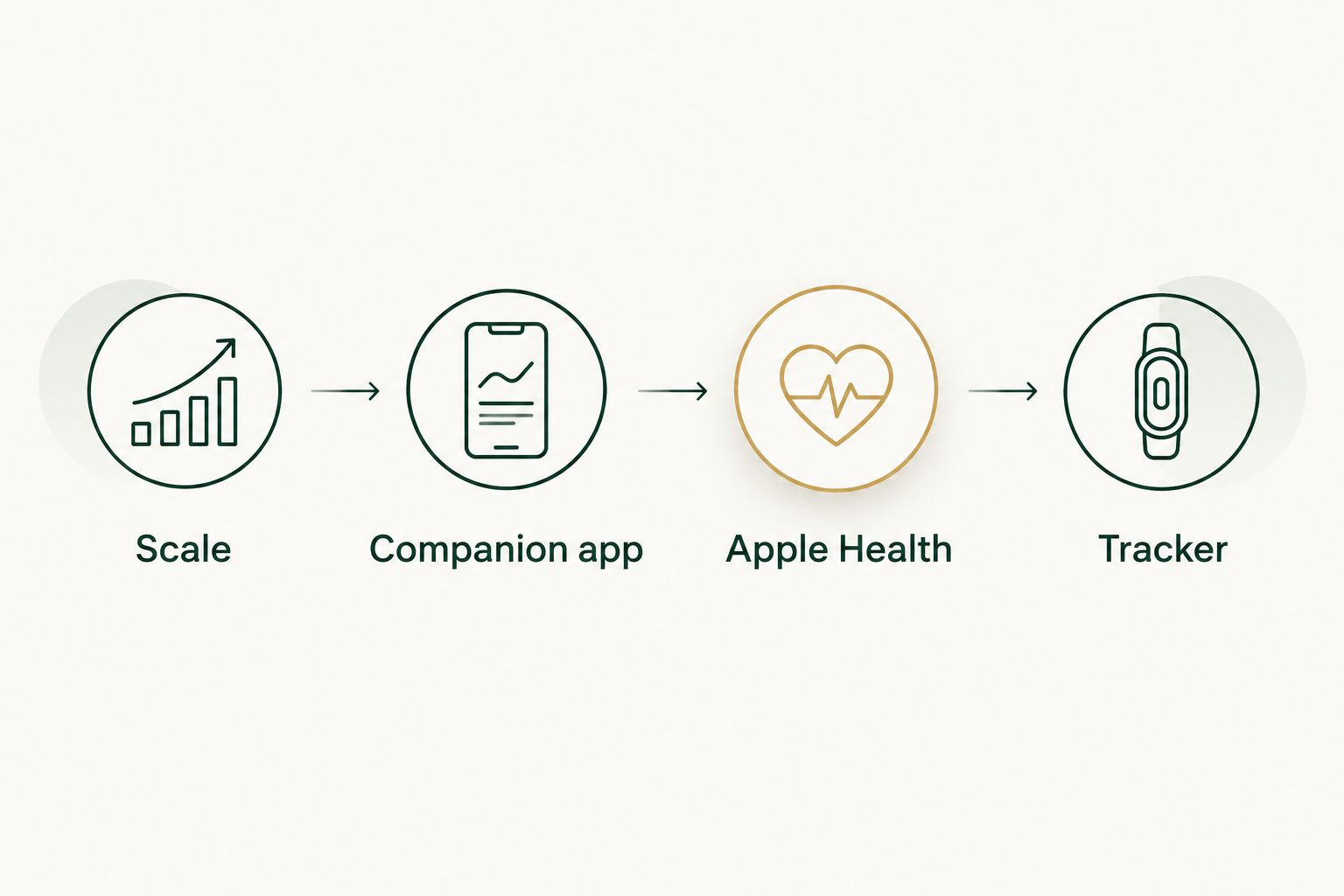
Find the first missing record before changing settings farther along the route.
Validate the trend, not just the connection
Once routine readings accumulate, inspect the trend instead of reacting to each fluctuation. If your app offers a 7-day average, use it to smooth short-term variation. If it does not, compare measurements over consistent intervals rather than treating every change as a treatment result.
A weekly average means the average of the readings actually recorded during that week. It does not mean every day was measured. Missing days and changing measurement conditions affect how confidently you can compare periods.
Do not fill gaps with guessed weights. If you enter a real measurement manually, preserve its original date and check whether an automatic copy arrives later. Your record should distinguish missing information from measured information.
Second variant: Update weight directly without Apple Health
A direct connection is appropriate when the scale's companion app and your tracker explicitly support each other. It removes the intermediate health record, but it also removes that convenient checkpoint when troubleshooting.
- Confirm direct compatibility in the current documentation for both apps. Verify that the connection transfers weight, not merely steps or activity.
- Open the documented connection area in the app that initiates authorization. Sign in to the correct destination account and approve only the permissions required.
- Take or sync a new measurement using the manufacturer's instructions. Confirm that it appears in the companion app before checking the tracker.
- Inspect the destination value, unit, date, and profile. If the same tracker also imports weight through Apple Health, keep only one import route active.
Expected result: A new source measurement reaches the tracker without relying on Apple Health.
Do not treat historical import as proof that future updates work. A connection might transfer older records during setup while later updates still require an app refresh or another documented action. Verify a genuinely new reading after authorization.
Keep manual entry as a fallback, not a parallel daily workflow. Otherwise, the manual record and its later automatic copy can look like separate measurements.
Troubleshooting
The reading exists on the scale but not in its app
Start with the device-to-app connection. Check batteries, the assigned profile, and the phone or network conditions specified by the manufacturer. Open the companion app and complete its documented synchronization process.
Do not disconnect the tracker yet. Nothing downstream can import a reading that has not reached the source app.
Apple Health has the reading, but the tracker does not
Check the tracker's permission to read weight and confirm that importing weight is a supported feature. Open the tracker and use its documented refresh behavior. Also check whether you authorized a different account than the one currently displayed.
Avoid repeatedly reconnecting everything. First identify whether the tracker imports new records, historical records, or both.
The chart contains duplicate measurements
Inspect each record's source before deleting anything. A direct connection, an Apple Health connection, and manual entry can all deliver copies of the same measurement.
Keep one import route. Test a new reading after disabling the redundant connection, then correct older duplicates according to each app's instructions. Deleting a record in one app does not establish that every connected copy was deleted.
The weight, date, or household member is wrong
Compare the original record with each destination. Check pounds versus kilograms, the phone's time zone, and the profile assigned by the scale app. Travel and measurements near midnight deserve particular attention when dates differ.
Correct the source assignment where supported, then inspect the destinations. Do not assume a correction automatically propagates through every connection.
Weight imports, but body composition does not
Check whether the specific body-composition category is supported at both ends and whether permission was granted. A successful weight transfer does not establish support for every measurement the scale displays.
Treat consumer body-fat and muscle estimates as estimates. Hydration and measurement conditions affect bioelectrical impedance, and an app's muscle estimate cannot establish that your treatment is preserving muscle.
Customize your workflow for clinical use
Build a useful review summary
Your 2026 tracking summary should answer a clinical question, not simply display a long chart. Before an appointment, prepare:
- The date range and weight trend, with units clearly shown.
- Changes in measurement conditions, including travel or a replacement scale.
- Medication changes and relevant symptoms, recorded separately from the weight measurement.
- Changes in appetite, food intake, activity, strength, and daily function that you want to discuss.
Ask your clinician which format they accept before exporting personal health information. A screenshot, report, or file is useful only if it includes enough context to interpret. Never assume your consumer tracking app connects directly to your clinical record.
For ongoing care, direct primary care for weight loss management explains the clinical relationship around the numbers. A chart helps organize that conversation; it does not decide whether a prescription is appropriate.
Keep weight inside the larger health picture
GoodLife Health's Cardiometabolic Optimization model includes a Biomarker Audit every 90 days. The included markers cover ApoB, Lp(a), hs-CRP, HbA1c, lipids, insulin markers, and full hormone and thyroid panels. Labs run through the Beluga Health lab network.
Clinical care is delivered by licensed physicians of Beluga Health, P.A., an independent Florida professional corporation licensed to practice in all 50 states, working under GoodLife Health's clinical protocols. Your physician interprets measurements alongside symptoms, history, laboratory findings, nutrition, and activity.
The advantage is clinical context beyond body weight. The limitation is equally clear: neither a membership nor a connected scale makes a consumer body-composition estimate diagnostic, and this workflow does not establish an automatic connection to your care team.
Do not change medication doses because a tracking app predicts a plateau. Contact your prescribing clinician about treatment decisions. Seek urgent assessment for severe symptoms rather than waiting for the next chart review or scheduled lab visit.
FAQ
How do I connect a smart scale to weight loss tracking?
Connect the scale to its companion app, then use a documented direct connection or a supported health-data connection to your tracker. Verify a new measurement at each stage, including its date, units, and assigned profile.
Can I connect any Bluetooth scale to Apple Health?
No. Bluetooth connectivity alone does not establish Apple Health compatibility. The scale's companion app must explicitly support writing weight to Apple Health.
Why does my smart scale sync weight but not body fat?
Weight and body-fat estimates are separate data categories, and a connection does not necessarily support both. Check the supported categories and permissions in the source and destination apps.
Is a direct app connection better than Apple Health?
A direct connection is simpler when both apps document support for weight transfer. Apple Health adds an intermediate record you can inspect, but requires compatible apps and permissions at both ends.
Will connecting my scale automatically send readings to my doctor?
No. Connecting a consumer scale to a tracking app does not establish clinical-record integration or active monitoring. Ask your care team how they accept weight records and whether anyone reviews them between visits.
How often should I weigh myself during medical weight loss?
Use the measurement schedule agreed with your clinician. Consistent conditions matter, and frequent weighing is not appropriate when it worsens anxiety, restrictive eating, or compulsive checking.
Can a smart scale tell whether I am losing muscle?
A consumer smart scale cannot establish muscle loss from its estimate alone. Your clinician can assess the concern using your symptoms, nutrition, strength, function, and additional evaluation when appropriate.
Does GoodLife Health require a connected smart scale?
This workflow does not establish a connected-scale requirement for GoodLife Health care. Ask your clinical team which measurements they want and how to share them; do not assume a particular device or automatic integration is required.
References
- Tirzepatide Once Weekly for the Treatment of Obesity (SURMOUNT-1). 2022. pubmed.ncbi.nlm.nih.gov/35658024/
- Once-Weekly Semaglutide in Adults with Overweight or Obesity (STEP 1). 2021. pubmed.ncbi.nlm.nih.gov/33567185/